

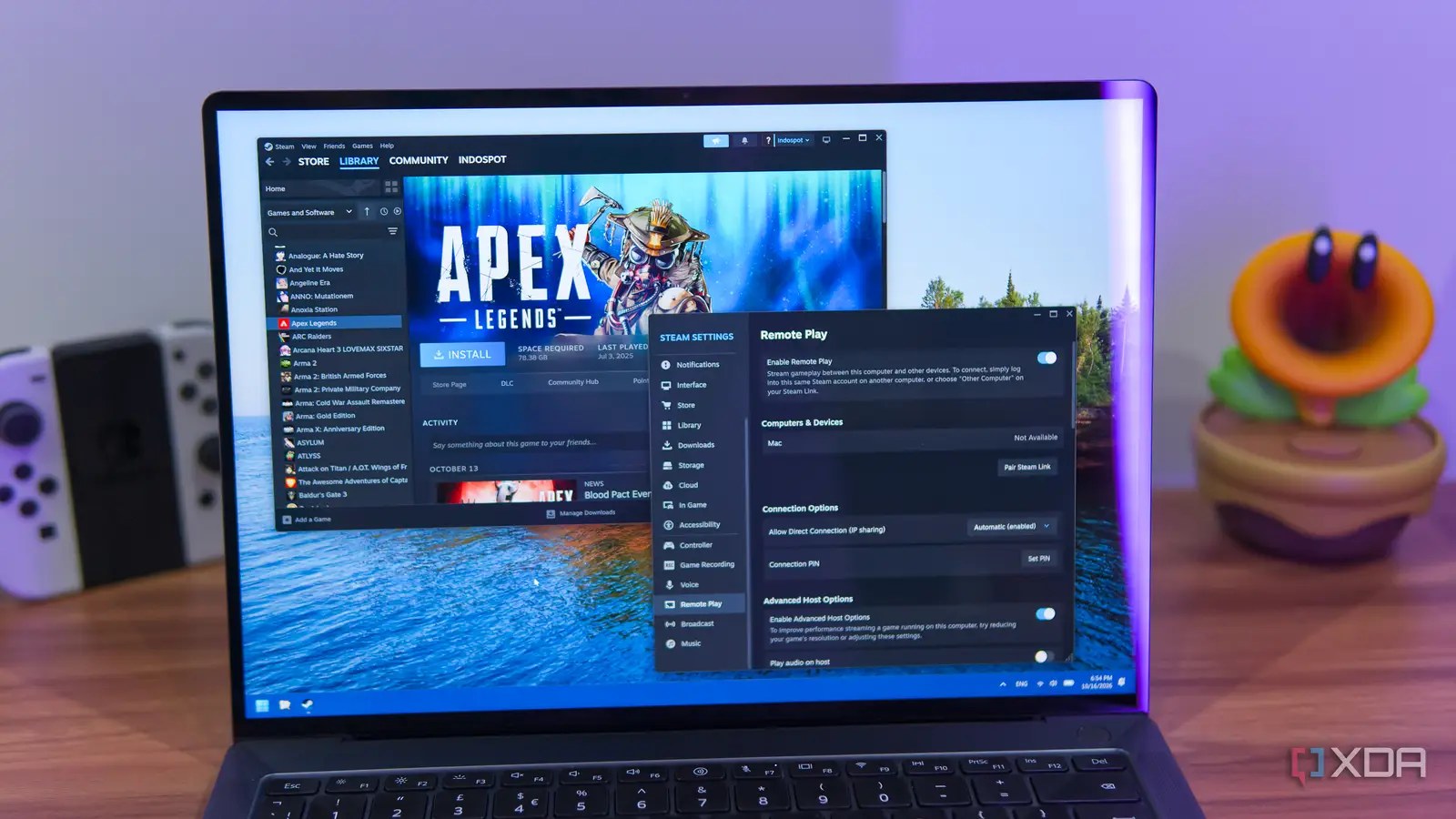
Steam’s Remote Play lets players run games on one machine with higher-fidelity graphics and better performance, then stream them over a home network to another device — including gaming handhelds like the Steam Deck. But default settings can make that experience laggy, from merely unpleasant to unplayable.

According to xda-portal, three hidden tweaks — plus one additional check for Mac users — can improve streaming quality before you dismiss the feature entirely.
Turn off hardware decoding and encoding
GPU-accelerated decoding and encoding are enabled by default on Steam Remote Play devices, which sounds beneficial. But as far back as four years ago, users have reported that hardware decoding causes stutters or flickers that can make games unplayable. The issue hasn’t gone away — comments on a Reddit post earlier this year reiterated that it still affects many people.
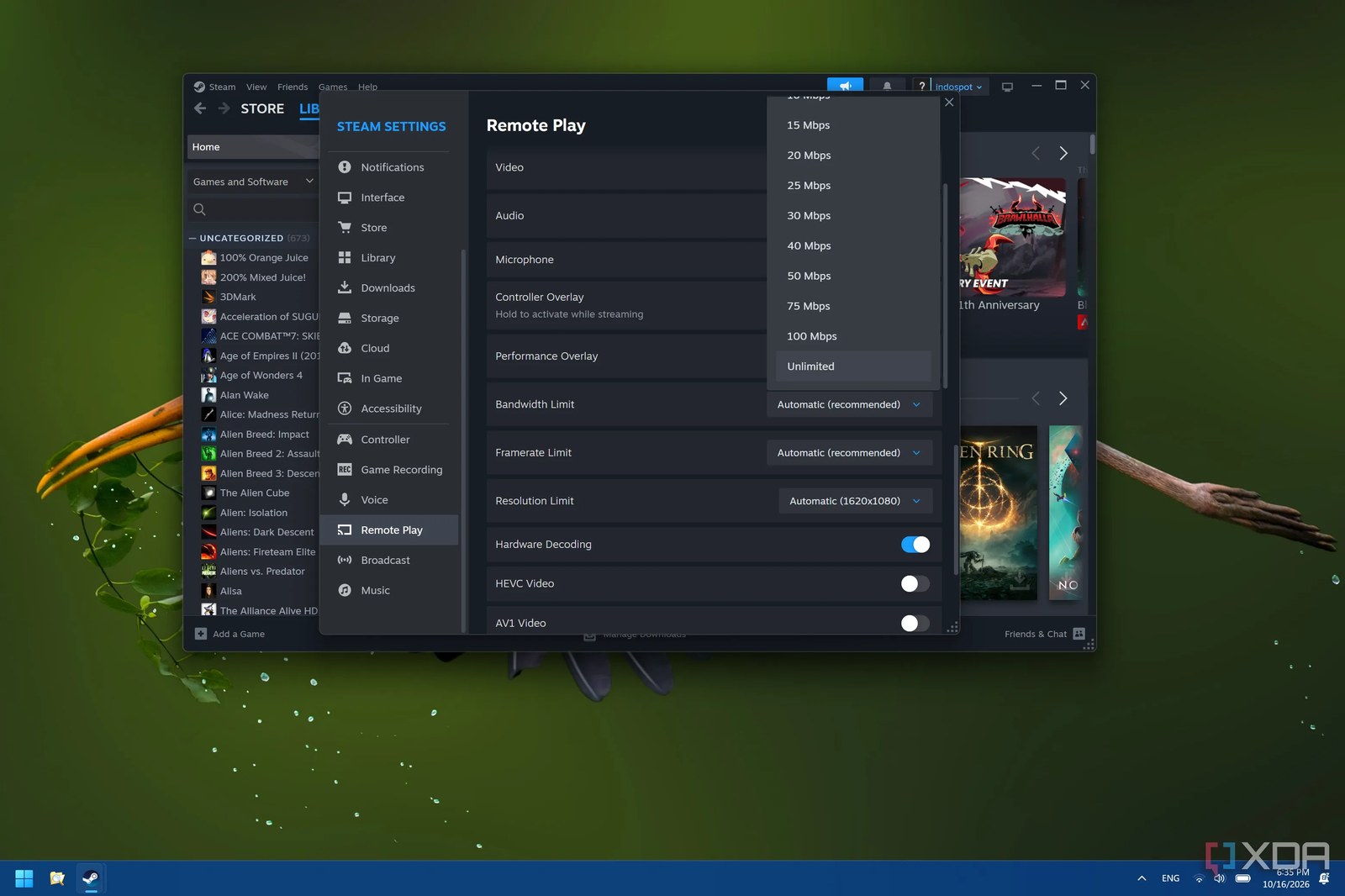
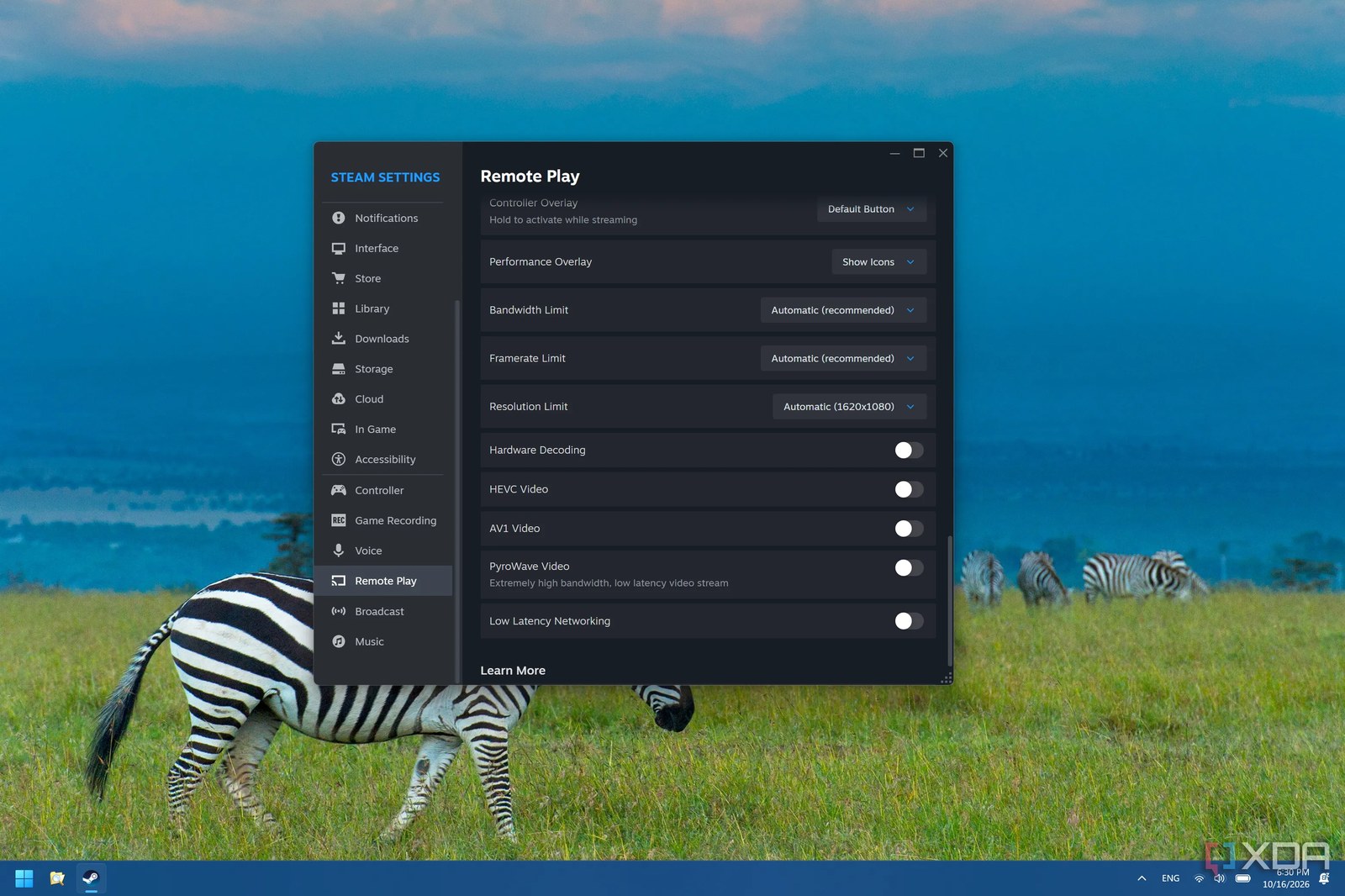
If you’re experiencing problems, check the hardware encoding option on the host machine where games actually run. Turning it off may improve your experience. You’ll need to enable Enable Advanced Host/Client Options first to see these toggles.
Prioritize streaming traffic
Multiple devices often use a home network at once, and game streaming needs low latency and solid quality to be usable. If your stream is delayed because something else is consuming bandwidth, the impact shows up immediately in real time.
In the Steam Remote Play settings under Advanced Host Options, you can turn on Prioritize network traffic, which gives game streams precedence over other activity. You may also want to check your router’s quality-of-service (QoS) settings to prioritize those devices, too.
Adjust the bandwidth limit
By default, Steam Remote Play adjusts its bandwidth limit automatically based on your























Συμμετάσχετε στη συζήτηση