

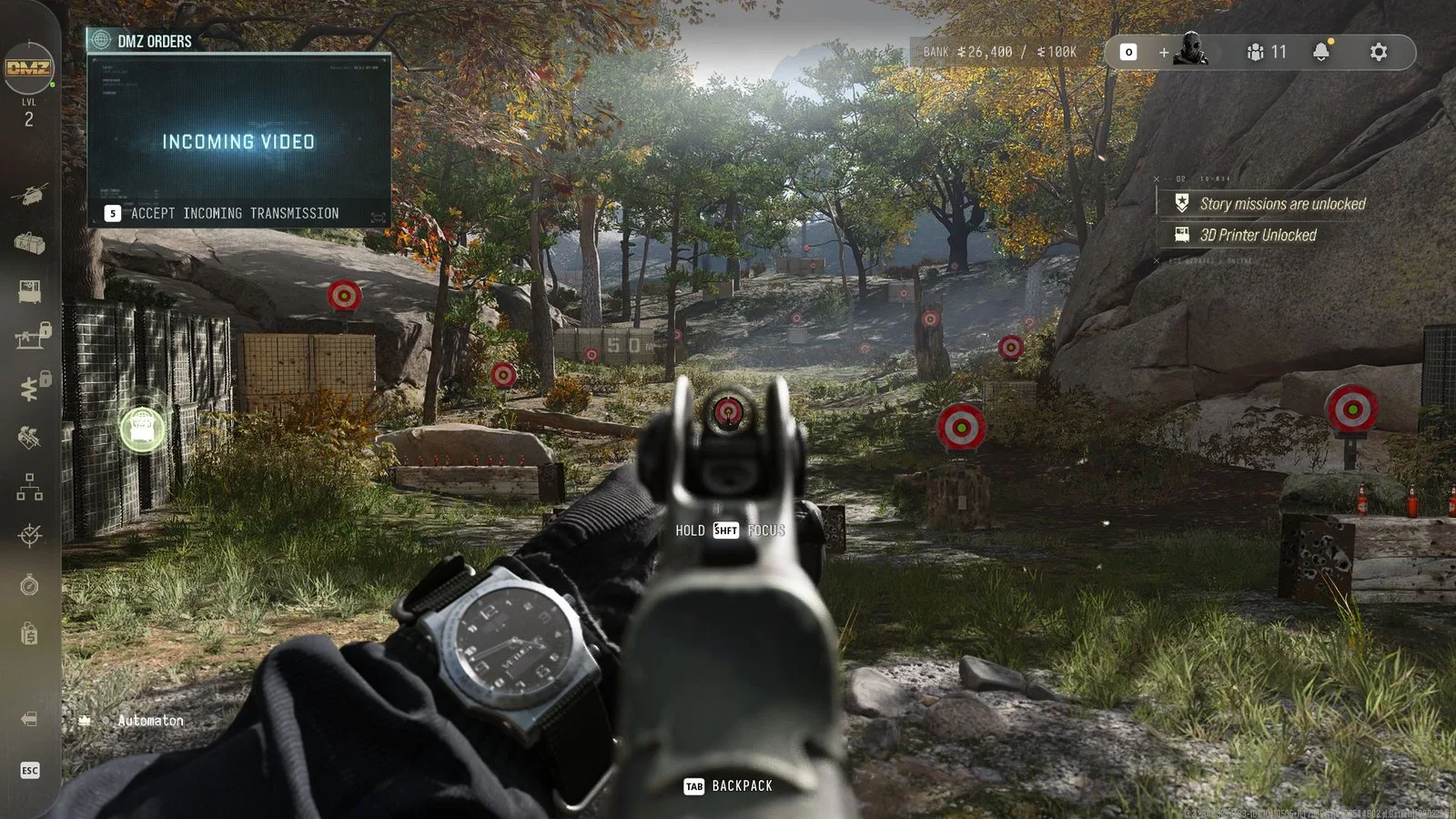
I’m not usually one for all these fancy graphics; give me more frames, at all costs. But when I booted up Call of Duty: Modern Warfare 4, I have to admit, I was a little reluctant to sacrifice too much in the visual department. Because the game is, indeed, gorgeous despite being a little glitchy with texture pop-ins and flickering in DMZ mode. A more tailored approach was needed. So, I set about testing every single graphics setting in the game, one by one, to see which ones have the biggest impact, and I found there are four main settings to tweak.

First things first, though, if you just want to get up and going and you’re using a mid-range PC, whack it on the Balanced preset, and you’ll be fine. If you’re using a high-end rig, then you should be fine setting it to the Ultra preset.
Note: All performance figures were calculated by doing the same 30-second run in-game, on Mission 4 of the campaign. I kept all movements and actions as similar as possible in each run I performed.
Latest Videos From
PC Gamer
Preset performance comparison
Comparing game performance at different graphical presets at 1440p, using an RX 9070 XT, Ryzen 7 7800X3D, and 32 GB of DDR5 RAM.
Call of Duty: Modern Warfare 4
Avg fps
1% low fps
Minimum preset
Basic preset
Balanced preset
Ultra preset
Extreme preset
37.5
112.5
| Product | Value |
|---|---|
| Minimum preset | 146 Avg fps, 119 1% low fps |
| Basic preset | 137 Avg fps, 114 1% low fps |
| Balanced preset | 133 Avg fps, 109 1% low fps |
| Ultra preset | 107 Avg fps, 85 1% low fps |
| Extreme preset | 97 Avg fps, 75 1% low fps |
The biggest gain in performance comes from dropping from Ultra to Balanced. The differences between the other presets aren’t so great. All presets net well above 60 fps with a high-end PC, and most sit above 100 fps.
As you can see from the chart above, apart from enabling upscaling, by far the biggest performance jump comes from dropping from Ultra to Balanced. There’s nowhere near as big a difference between Balanced/Basic/Minimum and Ultra/Extreme.
If you’re keen on tinkering a little more, however, your first port of call should be the following four settings:
- Detail quality
- Shadow quality
- Shadow filtering quality
- Terrain quality
These settings are all found under Graphics > Quality > Advanced Quality Settings. The shadow settings obviously affect how shadows look, while the detail and terrain quality settings affect how the ground and small objects look. Increasing terrain quality makes things like ground surface textures appear more, well, textured, and detail quality makes small objects appear more—you guessed it—detailed.
Here’s the difference between (1) normal shadow quality and high shadow filtering quality on the left, and (2) low shadow quality and normal shadow filtering quality on the right:
Comparing higher vs lower shadow settings
On the left side, shadow quality is normal and shadow filtering quality is high. On the right, shadow quality is low and shadow filtering quality is normal.
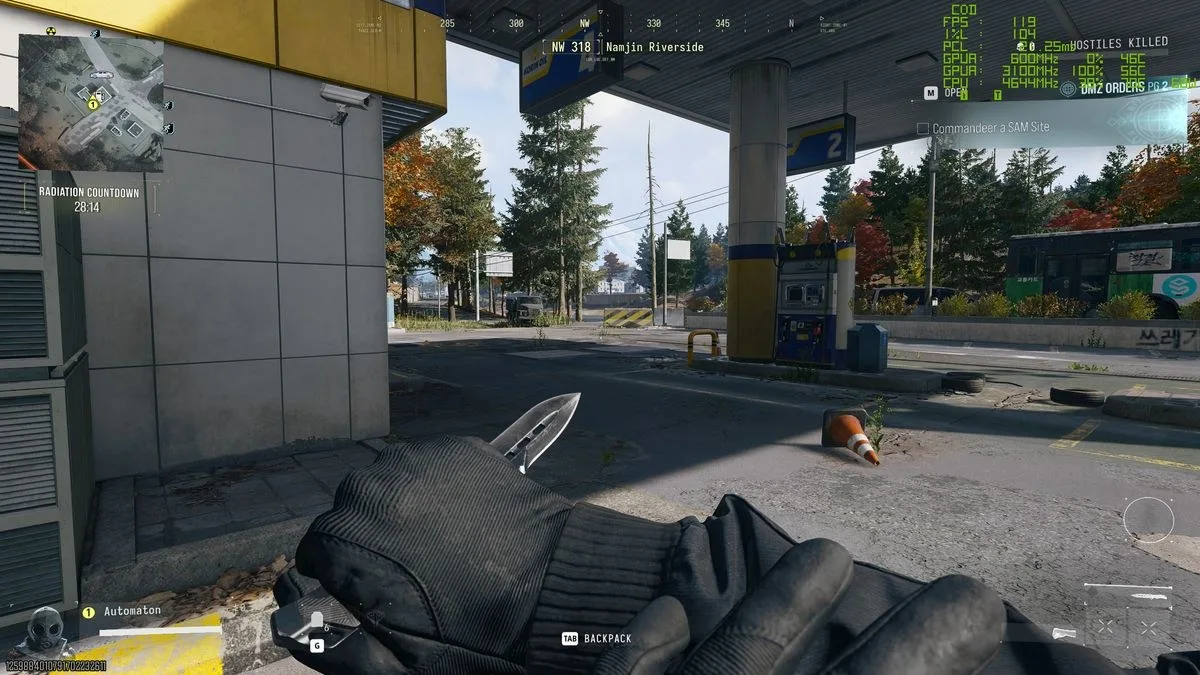
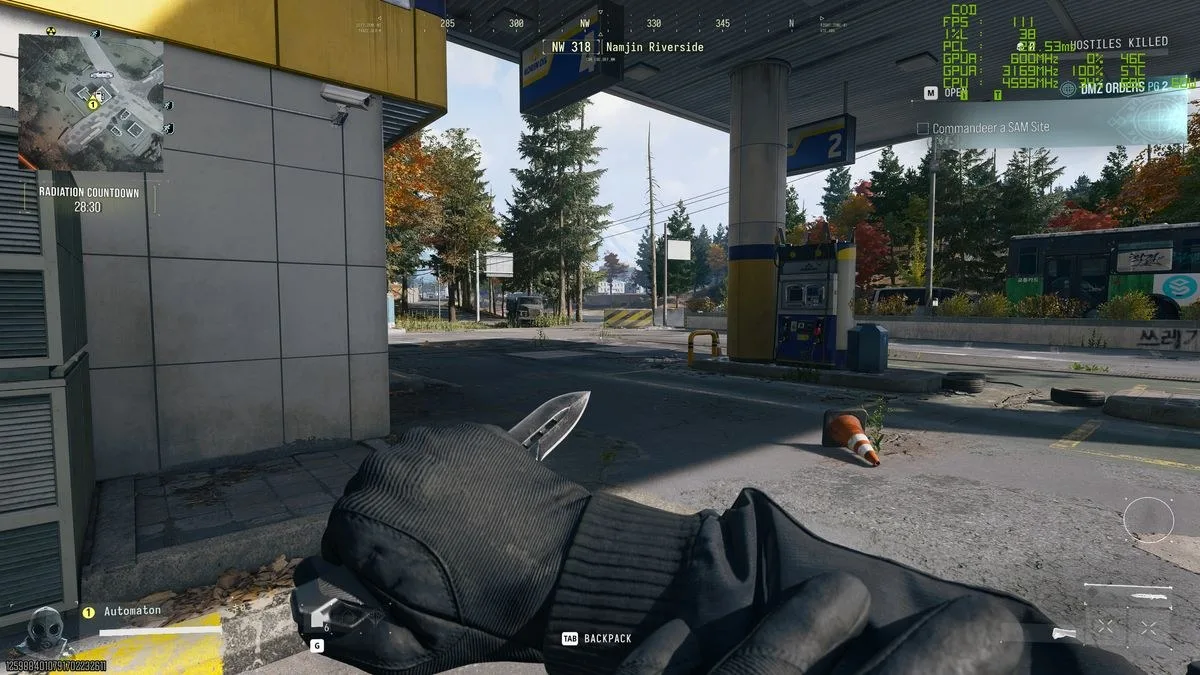
Normal quality | High filtering
Low quality | Normal filtering
And here’s the difference between (1) high detail quality and high terrain quality on the left, and (2) normal detail quality and medium terrain quality on the right:
Comparing higher vs lower detail/terrain settings
High detail quality and terrain quality on the left, normal/medium detail and terrain quality on the right.
Higher detail and terrain quality
Lower detail and terrain quality
As you can see, the game looks far from awful even with these settings lowered, though the difference isn’t unnoticeable. If you’re looking to gain some extra frames, though, I’d definitely consider trying out lowering these settings. As you can see from the chart below, you gain a big chunk of performance by dropping both the shadow and detail settings.
Performance gain lowering four key settings
This compares frame rate at the Ultra preset to frame rate with just the four settings listed above lowered down to what they are at the Balanced preset.
Call of Duty: Modern Warfare 4
Avg fps
1% low fps
Ultra preset
Four settings lowered
37.5
112.5
| Product | Value |
|---|---|
| Ultra preset | 107 Avg fps, 85 1% low fps |
| Four settings lowered | 124 Avg fps, 101 1% low fps |
You might want to steer clear of detail quality if you don’t want anything buggy going on. I found that dropping detail quality below high makes the occasional tree look blocky and unfinished even when at a moderate difference. You can see the difference in the image comparison below. For my part, I don’t mind it too much because most trees and other details are completely fine.
Comparing higher to lower detail quality
High detail quality on the left, normal on the right. Notice the yellow/orange tree loses all detail in the right-hand image.
High detail quality
Normal detail quality
All this being said, though, upscaling throws a spanner in the works. With upscaling enabled, I found the performance gain to be nowhere near as big when lowering these settings. Instead of the big jump you see above, it pushed me from about 150 fps to about 160–165 fps in DMZ mode using an AMD Radeon RX 9070 XT.
Now, as I said at the start, I am a bit of a frame-head—I love upping my frame rate for online shooters. So for my money, given the game looks far from bad with these settings lowered, for DMZ and متعدد اللاعبين, I think I’d keep the four settings low enough by enabling the Balanced preset, then drop down to 1080p with my 400 Hz monitor, enable Quality upscaling, and get headshotting.
For the campaign, though, and presumably in general for most gamers who aren’t massive frame-heads like me (yes, I’m trying to make the term stick), I’d say it’s worth keeping the three or four settings above ramped up to what they are on the Ultra preset and instead just enabling Quality upscaling, if your rig can handle it. I’d prefer the nicer shadows avoiding the very slight and occasional loss of crispness that comes with upscaling.
Best gaming mouse 2026
1. Best wireless:
Razer Viper V4 Pro
2. Best wired:
Logitech G502 X
3. Best budget wireless:
Mchose G3 V2 Pro
4. Best budget wired:
Glorious Model O Eternal
5. Best competitive:
Logitech G Pro X2 Superstrike
6. Best lightweight:
Corsair Sabre V2 Pro
7. Best MMO:
Corsair Scimitar Elite Wireless SE
8. Best small:
Razer Cobra HyperSpeed
9. Best ambidextrous:
Logitech G Pro
10. Best ergonomic:
Keychron M5
11. Best customizable:
Orbital Pathfinder
Have thoughts, questions, or benchmarks on this topic? Join the discussion on our forums.
Join Discussion ➔






















1 comment