
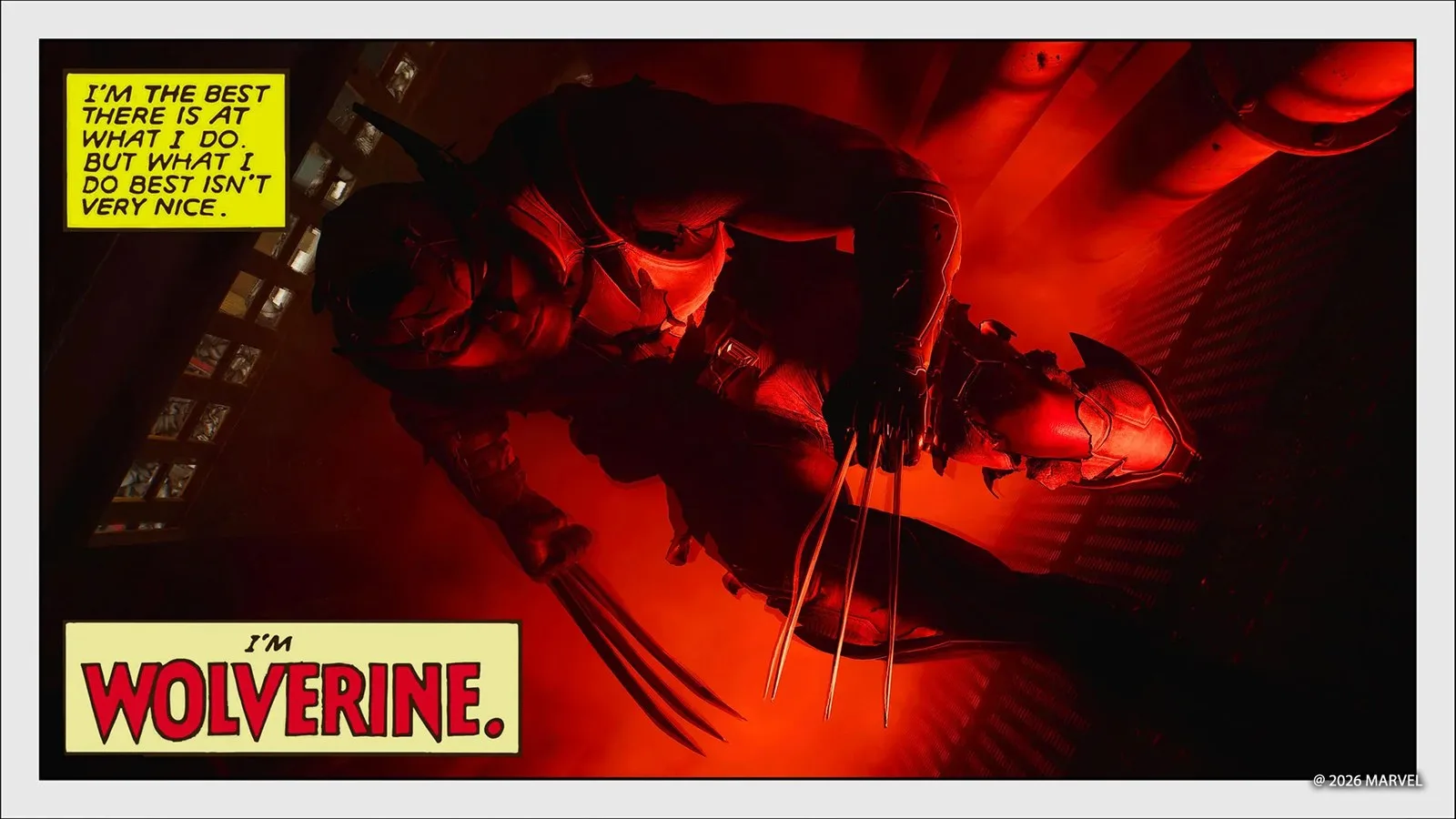
Get the most out of the game’s photographic features, with examples and suggestions to help you add to your toolset.

Photo Modes are a rewarding way to get to grips with some essential elements of photography, while letting you more closely examine and appreciate a game’s art design and increasingly photorealistic visuals. Feature-rich Photo Modes put an entire suite of virtual lighting rigs at your fingertips, subtracting concerns about space requirements, or the patience of your models as you get your composition just right.
Insomniac in particular continues to bring a superheroic heft to its photographic options, first established through its Marvel’s Spider-Man games, with Marvel’s Wolverine. The game’s out for just over a month, and we continue to be dazzled by the Photo Mode skills players have displayed since launch. We’ve equally had questions from budding shutterbugs asking for guidance on how to better their shots. Here, we unpack some of the options the studio offers up in Photo Mode and some examples to get you thinking.
Warning: some of the photos here are spoilers for the game’s outfits and mid-game content
Set up tips
Chapter select: Once you’ve rolled credits, loading your save file will pop you back in Logan’s cabin. Head to the bed to access a chapter select menu, letting you leap into any location or moment from the story. From Canada’s snowy wilderness, neon-soaked Shinjuku arcades, to the compact districts of Madripoor and more, you got plenty of backdrops, blockbuster moments and quieter character moments to work with.
Photo Mode UI repositioning: Insomniac has packed in a multitude of options in its Photo Mode to cater to every need you’d have. That includes up to 5 independent lighting rigs (plus customisable natural light options!), character poses, miniature mode, filters and more. Extensive options means a chunky, multi-tab Photo Mode UI. Remember: if you find the UI is blocking your shot, you can tap a button to alternate it between the left and right of your screen.
D-Pad Shortcuts: As default you access Photo Mode from the Pause menu, but jump into Settings, and you can map a shortcut to Photo Mode to the DualSense’s D-Pad. And while you’re there, assign another D-Pad button to adjust the game speed, letting you reduce game speed by 30, 50 or 70%. Useful when you want to capture the perfect action moment.
Landscape, portrait or between: You can use the Tilt option to angle the camera from a straight landscape shot, to a dramatic dutch angle, or a 9×16 portrait image. You’ll need to tilt your own head to better compose the shot with that last option (or, if you’re playing on a PlayStation Portal, just turn the handheld device on its side).
I see five lights
A headline feature of Marvel’s Wolverine Photo mode is five independent lights, each offering separate colour spectrums, intensity options, adjustable distances and such. You can choose each light to be Sphere (casting a wider glow from their centre) or Spotlights (a stronger directional beam).
One to two lights: That can seem daunting, but you don’t have to use them all! In fact, for individual portrait shots, just one or two will do. In photography terms, two lights cover your key light, and your rim light. The former is the main light, illuminating your subject from the front. Play about with having this light to the side, above or below your subject to change the mood of the shot. The latter usually is positioned behind your subject at a lower intensity and at a slight angle, casting a soft fall of light onto your model’s side, shoulders or hair, which separates them from the background.
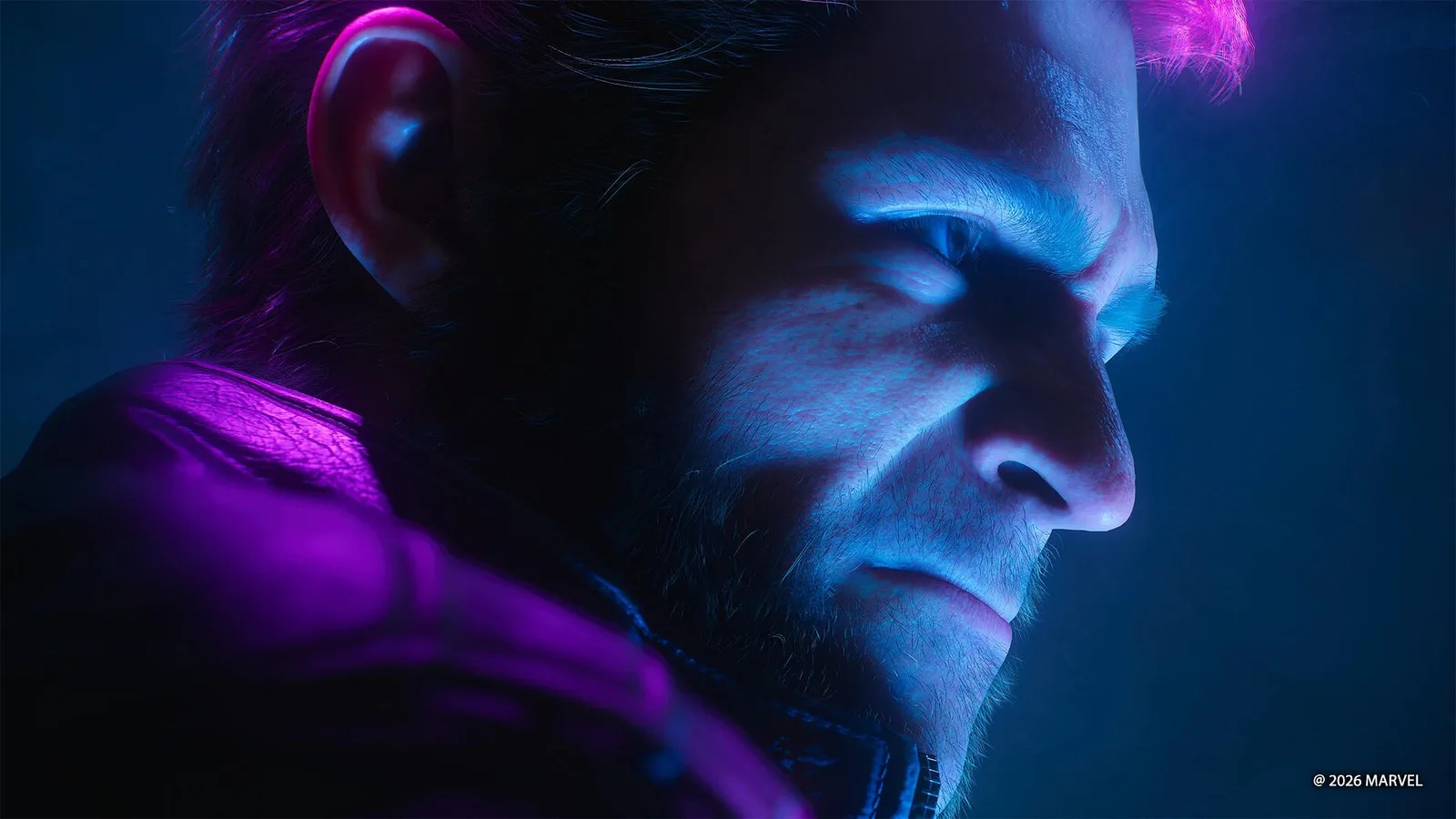
But those guidelines aren’t rigid: play with lighting, shifting from traditional portraiture to something more startling, as I’ve done with the above. (Which positions Logan’s character model within the radius of a gun’s muzzle flash during a fight scene.)
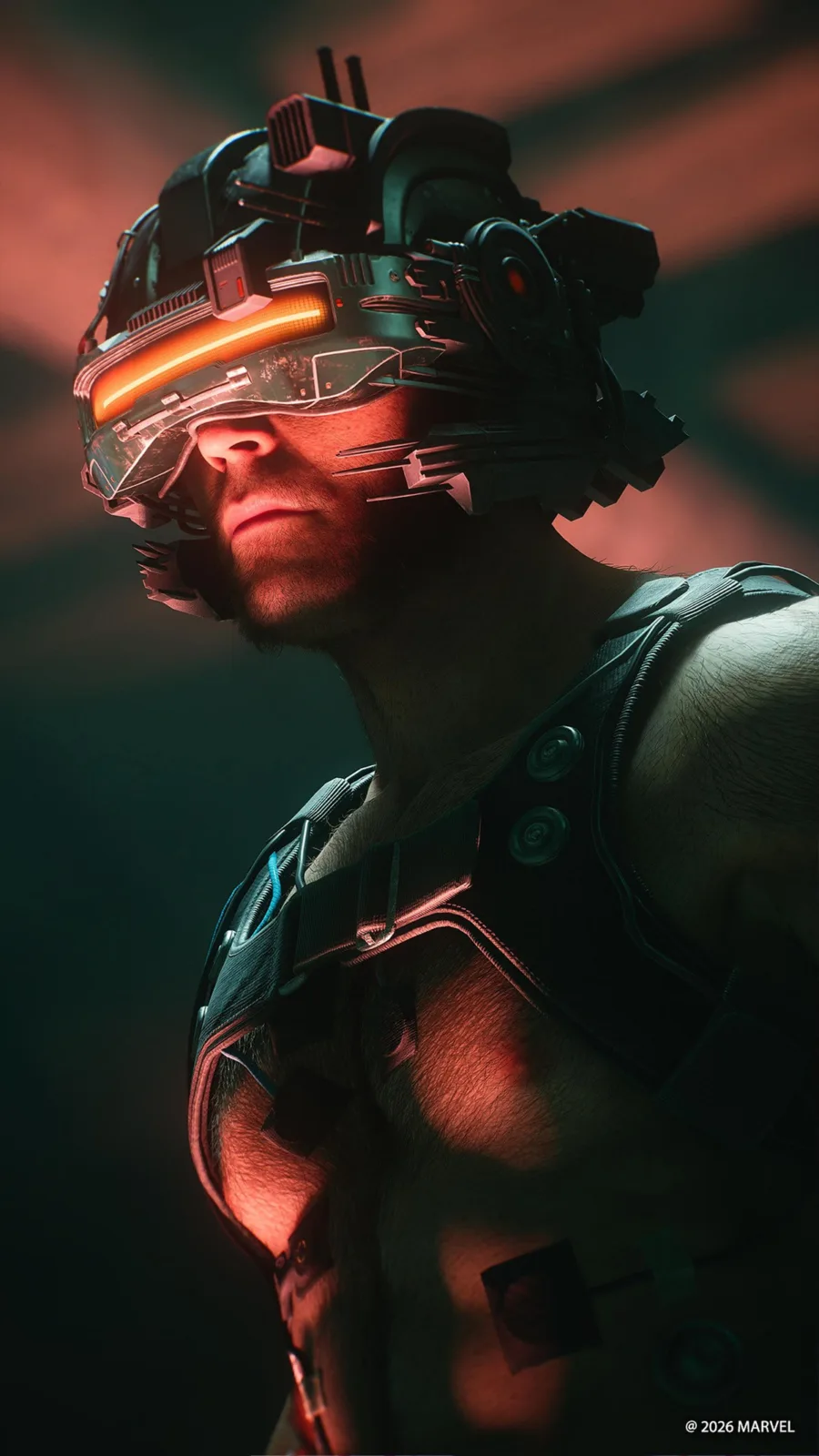
And once you’ve comfortable with one subject, extend it to two models, then group shots.
So, 5 lights. There’s a few examples of location-based uses that could help wrap your head around how to operate them.
Try this: Take the arcade early on in the “In the Shadows” chapter. It’s a barrage of colour, glowing cabinet screens and neon ceiling lights battling for dominance. Switch to Photo Mode and use each light to mimic the glow of a different arcade cabinet screen, or infer ones that aren’t even in shot. Tinker with the intensity and light type of each. You’re just trying to best replicate the mood and look of an arcade bar.
I applied the same trick to the casino scene below, but with two lights only. One was positioned just in front of the fruit machine to give off that notable glow, which bathed Jean Grey’s left side in purple light. Logan on the other hand was the focus of an off-white light off-camera, mimicking the glow from the wider casino floor.
Three lights: The below photo ups the set to three lights, this time coloured to replicate the flow from the two lanterns to the rear of the shot, and the candles on the floor in the foreground. I upped the intensity of the front light to cast a strong shadow on the floor. A similar trick I applied to an alternate version on the arcade scene: notice the shadow of the grabber claw cast on the back wall?
Move him as you need him
In all the shots thus far, my focus was ever on the position and body language of NPCs, rather than Logan himself. That’s because with the Character Pose option, you’re able to cycle through a set of different locked poses, and then, with movement options, you’re free to move Wolverine to anywhere within a generous radius (up, down, left, right, back and forward). You can rotate him, cycle through a variety of facial expressions and switch between any suits or claws you’ve currently unlocked. You can also hide him entirely, or any enemy NPC thanks to a toggle option in the menus.
A good rule of thumb with any photo: once snapped, cycle through the different suits before exiting. Some might fit the mood of a shot better, and the various materials on each react differently to light sources.
Note: Logan’s original position when entering Photo Mode will be taken as the centre point to which the 5 independent lights will circle around, not where he is moved to. So you’ll need to adjust lights accordingly if you want him lit a certain way.
Ready, set, action (figure)
A fun feature making a welcome leap from Marvel’s Spider-Man 2: Action Figure mode. Found in the Character Pose sub-menu, one click turns Logan miniature. Ripe for some creative executions. For myself, I envisioned Wolverine sitting in Jean’s outstretched palm. In trying to capture that moment during a combat moment, I stumbled onto something unexpected: the world’s smallest Fastball Special.
Worth noting: despite his (more than usual) diminutive size, mini-Logan’s model has the same movement radius (up, down, left right, forward or back) as his normal-sized version.
The above had a comic book cover-like look I liked, which led me to the rabbit hole of using miniature work, and the ability to switch backgrounds to a specific colour palette to mimic something you’d see on the front of a graphic novel.
The above was possible due to another feature worth flagging: Logan has an entirely separate set of poses when he’s airborne, as exampled below.
Merging Figures
The Wolverine character model isn’t blocked by other character models or environmental objects when moving him,
giving you the flexibility to get characters side by side for some dramatic shots. Don’t worry about any clipping or overlaps between models! The right camera angle will hide that imperfection (such as the shots below: in the first Jean’s right arm is actually clipping through Logan’s jacket, the second, Logan’s knee is clipping through Jean’s back).
That said, don’t be afraid to get creative with the clipping. Example below: having Jean and Logan’s heads blend together, a nod to sci-fi movie-style posters and referencing how the game’s story delves into his mind and memories.
Composed and captured your shot? Now pan around
Captured a great shot? Great. But before you back out of Photo Mode, train yourself to do one last pan around. There may be an alternative angle to your setup, a hidden detail just out of view. Heck, there could be a completely different photo worth capturing in the frozen moment. For me, an early example was the below. Originally this was a neon-lit picture of Wolverine in a completely different pose. But I widened the lens and spotted Jean’s hand in the foreground, which made for a fun framing device and also gave a different vibe to the photo.
Now go grab some great photos
The above isn’t intended to be an exhaustive rundown of the game’s many Photo Mode options, but a few primers to get you thinking and start on capturing great shots of your own. If you need more inspiration, find a few more galleries below!
Street Photography 画廊
Remember to look beyond your immediate view. Every location in the game is rich with cool environments or background characters going about their lives.
Action 画廊
You can increase the amount of blood or damage on Logan’s character model via a specific menu option in Photo Mode.
Have thoughts, questions, or benchmarks on this topic? Join the discussion on our forums.
Join Discussion ➔






















参与讨论