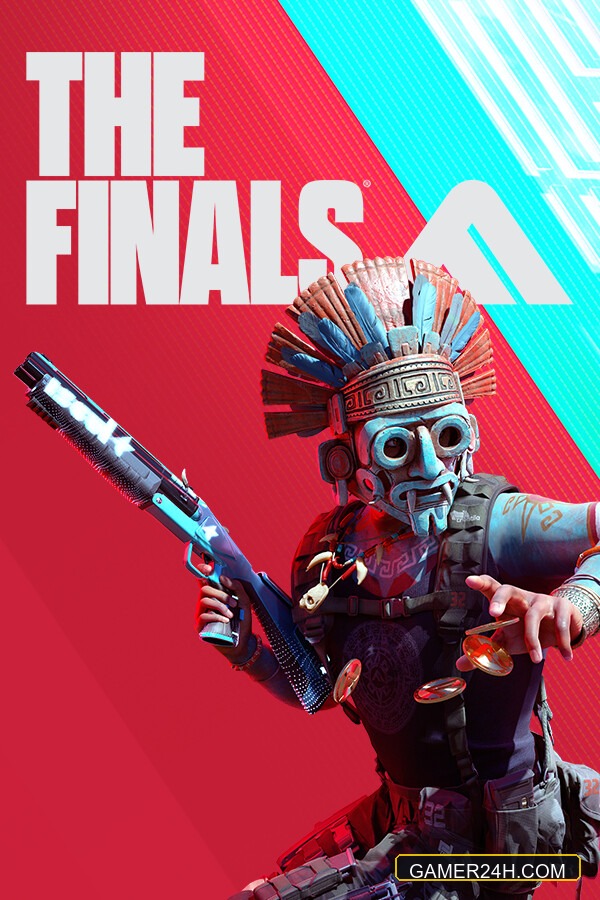
Following the rollout of the Windows 11 August Update (KB5121003), thousands of PC gamers have encountered severe instability, sudden system reboots, and persistent desktop crashes across titles such as The Finals, ARC Raiders, and various Unreal Engine 5 games. The crashes typically manifest as sudden freezes or EXCEPTION_ACCESS_VIOLATION errors.
Investigation by developer technical teams has isolated the root cause to an architectural conflict between the new Windows security layer and an outdated third-party kernel driver: inpoutx64.sys.
Understanding the Cause: What is inpoutx64.sys?
inpoutx64.sys is a legacy hardware interface driver originally utilized by various peripheral utilities, RGB lighting controllers, and hardware updater software (such as legacy Razer updater services). The KB5121003 update enhanced Windows kernel-level security checks, causing games with anti-cheat engines (such as Easy Anti-Cheat and Vanguard) to instantly crash when detecting this driver active in memory.

Step-by-Step Fix: Removing the Conflicting Driver
Follow these verified steps to safely stop and remove the conflicting driver without compromising your system:
Method 1: Command Line Removal (Recommended)
- Press the Windows Key, type
cmd, right-click on Command Prompt, and select Run as Administrator. - Stop the active driver service by entering the following command and pressing Enter:
sc stop inpoutx64 - Delete the service registration by running:
sc delete inpoutx64 - Open File Explorer and navigate to:
C:WindowsSystem32drivers - Locate
inpoutx64.sysand delete the file (or rename it toinpoutx64.sys.bak). - Restart your computer and launch your game.
Method 2: Clean Peripheral Utility Reinstallation
If the file is locked by an active background peripheral suite:
- Temporarily uninstall older versions of your mouse/keyboard RGB configuration suites.
- Download the latest 2026 WHQL-certified versions from the manufacturer’s official support website.
Additional Stability Recommendations
- Verify Game Files on Steam: Right-click the game > Properties > Installed Files > Verify integrity of game files to ensure no binaries were corrupted during previous crashes.
- Avoid Uninstalling KB5121003: While rolling back the entire Windows update resolves the crash, it removes critical OS security patches. Removing the isolated
inpoutx64.sysdriver resolves the issue completely while keeping your operating system fully secured.























Join the conversation