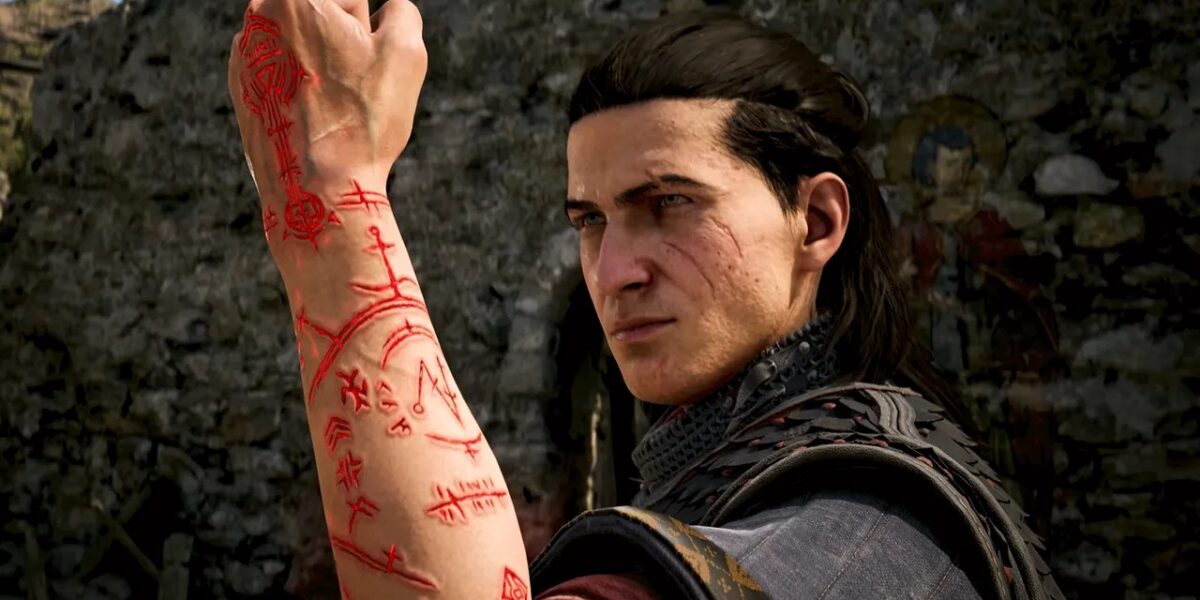
The Blood of Dawnwalker, a title I eagerly anticipated since its announcement, has finally arrived, and it’s an experience best savored on PC. While 2026 is brimming with incredible PC games, this one stands out thanks to its pedigree and the initial system requirements that promised a serious challenge for even high-end rigs.
Optimizing Your Dawnwalker Experience
Fortunately, Rebel Wolves has since adjusted the recommended specs, making it more accessible without sacrificing visual fidelity. While I initially braced myself for an RTX 5090 requirement, the game now comfortably runs on an RTX 4070 Ti at 4K 60fps. And while the character models might not be quite as detailed as the breathtaking environments, the overall experience is stunning.
The Blood of Dawnwalker truly shines on PC, offering a wealth of graphics options that allow for fine-tuning performance and visuals. While built on Unreal Engine 5, it avoids the pitfalls that have plagued other titles using the engine, although it’s still demanding, especially on your CPU. Forget about running this smoothly on a handheld; I managed a shaky 24fps on the Lenovo Legion Go 2 at the lowest settings in 900p.
Even with a powerful PC, maximizing Blood of Dawnwalker can be taxing. On my RTX 5090, achieving a smooth 70-90fps at 4K with DLSS Quality and Ultra preset required some tweaking. The following settings guide will help you strike the perfect balance between visual fidelity and performance, regardless of your hardware.
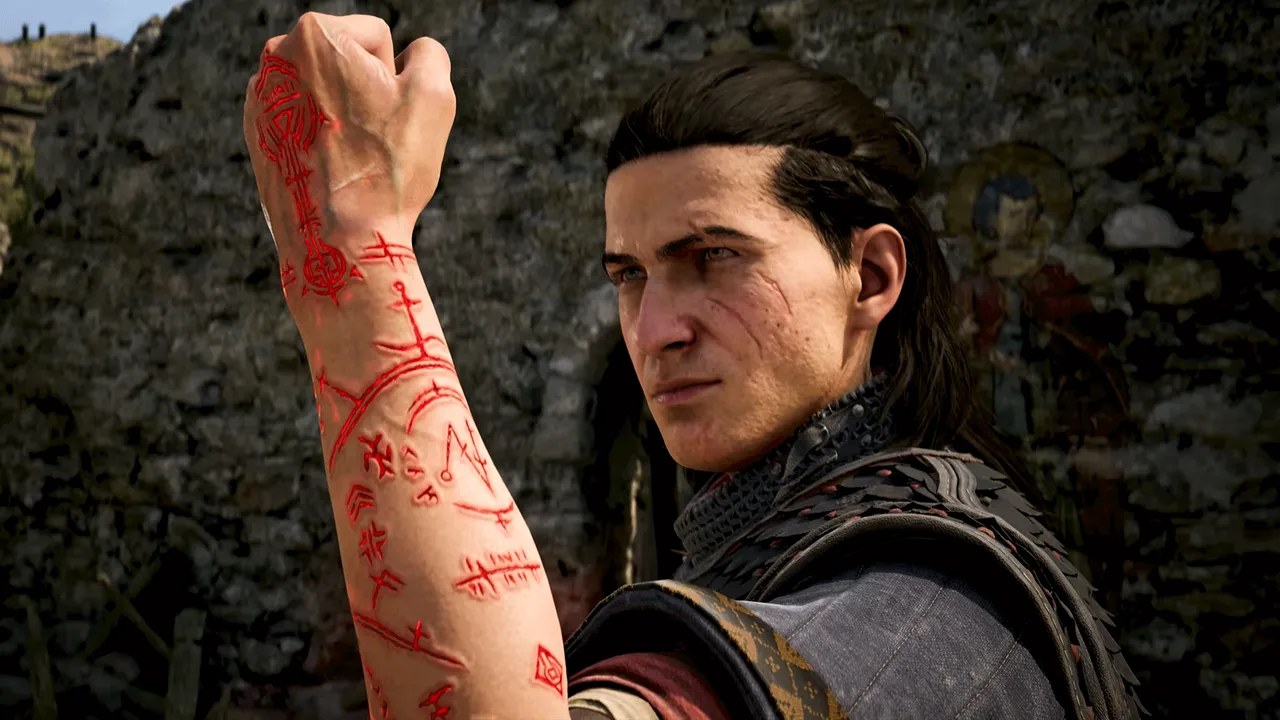
Here’s my recommended graphics settings to get you started on your journey:
- Shadow Quality: This setting controls shadow resolution and accuracy. While shadows enhance the atmosphere, they can impact performance. Mid-Range PC: High; Handheld: Low
- Light Quality: No ray tracing here, but this affects the intensity of lighting effects. Lower it if you’re struggling with frame rates. Mid-Range PC: High; Handheld: Low
- Reflections Quality: Reflective surfaces are relatively scarce in my playthrough so far, but this setting controls screen space reflections. Mid-Range PC: Medium; Handheld: Low
- Post-Processing Quality: This encompasses various cinematic effects like bloom and motion blur. Keep it high for a polished look or disable entirely if you prefer a cleaner image. Mid-Range PC: High; Handheld: Low
- Texture Quality: Primarily affects VRAM usage. Max it out with 16GB+ of VRAM, use High with 8-12GB, and lower it for less than 8GB to avoid stuttering. Mid-Range PC: Ultra; Handheld: Low
- Effects Quality: Impacts particle effects, which are surprisingly prevalent in the game. Lower this if your CPU is bottlenecking performance. Mid-Range PC: Ultra; Handheld: Low
- Shading Quality: Another way to scale lighting intensity. Prioritize lowering this early if you’re struggling to hit 60fps. Mid-Range PC: High; Handheld: Low
- Foliage Quality: The foliage in Blood of Dawnwalker is stunning, but can impact performance. Lower it if needed, though I recommend trying a higher setting first. Mid-Range PC: Medium or High; Handheld: Low
- Detail Quality: This affects volumetric effects and destructible objects. Lower this if you’re experiencing CPU issues. Mid-Range PC: Medium; Handheld: Low
- Volumetric Quality: Focuses on the resolution of volumetric effects. I usually lower volumetrics first when optimizing performance. Mid-Range PC: Medium; Handheld: Low
- Upscaling Technology: Blood of Dawnwalker wisely avoids forcing TSR, offering DLSS for Nvidia, FSR for AMD, and XeSS for Intel. Choose the appropriate technology for your GPU.
- Upscaling Mode: If struggling to hit 60fps, use Performance mode for a smoother experience, but be aware that it can look rough at lower resolutions.
- Frame Generation: This AI-powered feature nearly doubles your frame rate by inserting interpolated frames, increasing latency slightly. I recommend enabling this if you have a high-refresh-rate monitor, especially since the game isn’t particularly fast-paced.
- Motion Blur, Bloom, Chromatic Aberration, Depth of Field: These are personal preference settings. Experiment to find what looks best to you. They generally won’t impact performance significantly.
With these settings as a starting point, you can fine-tune your Blood of Dawnwalker experience and immerse yourself in its captivating world. Now go forth and embrace your inner vampire!






Comments
Be the first to comment.